Local AI Lab Setup: Linux (Ollama)
This series treats your local LLM as a real service, which means the Linux runtime has to be stable before any benchmarks matter. Linux gives you the cleanest path to a service-style install, but the goal here is simple: install, start, and verify. We are not duplicating the upstream install guide; we are using it and then validating the endpoint. That keeps the series focused on behavior, not distro trivia. Get it running, then return to the main article.
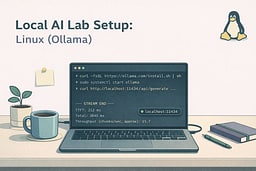
Install Ollama
Follow the official Linux install guide so you get the correct binaries for your system.1 The guide covers install scripts, manual packages, and platform-specific paths. Our value here is a clean verification loop, not a copy of every install option. Once installation finishes, move straight to starting the service. Then we verify the API.
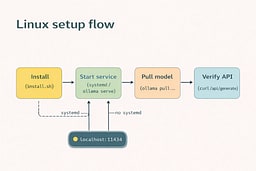
If your distro uses systemd, the installer can register a service.1 If not, you can run the server manually from a terminal. The result is the same: a local HTTP service on port 11434. Keep the service running while you test the endpoint. Once it responds, you can proceed.
Start the local service
If a service is installed, start it:
sudo systemctl start ollama
If you don't have systemd (or you're in a minimal container), run:
ollama serve
Pull a model and verify
Pull a small model so your first run is quick, then run it once to confirm inference works. The first response is often slower because weights are loading, which is normal. The real check is that the API responds with a streamed result. Use the curl request below to validate the endpoint.2 Once it responds, you're done with setup.
curl http://localhost:11434/api/generate \
  -H "Content-Type: application/json" \
  -d '{
    "model": "llama3.2",
    "prompt": "Say hello to my little friend."
  }'
Common issues
- Connection refused: confirm the service is running or start
ollama serve. - GPU drivers: if you plan to use a GPU, follow the Linux install requirements for your hardware.3
- NVIDIA GPU: install CUDA drivers before benchmarking.4
Next
Return to the main article for streaming clients and TTFT/throughput measurement: